This page contains affiliate links, and WFH Pro Tips may earn a commission from qualifying purchases at no additional cost to you. Our recommendations are independently selected from product specifications, manufacturer information, reputable third-party research, and owner-feedback patterns. We do not claim hands-on testing where none occurred.
THE QUICK ANSWER
Pick a mouse that fits your hand and grip, keeps the wrist neutral, and offers only the shortcuts you will remember to use.
- Hand fit beats feature count.
- A precise scroll wheel saves effort in long documents.
- Alternate devices or shortcuts if one motion becomes uncomfortable.
Working from home turns ordinary household choices into part of a professional system. The useful question is not which option has the most features, but which one removes friction from the work you actually do while fitting the room and equipment you already have.
RESEARCH-LED RECOMMENDATIONS
Our picks
These selections are based on available specifications, manufacturer documentation, established design principles, public professional reviews, and recurring owner-feedback themes. Prices and configurations can change; verify the current listing before purchase.
Logitech
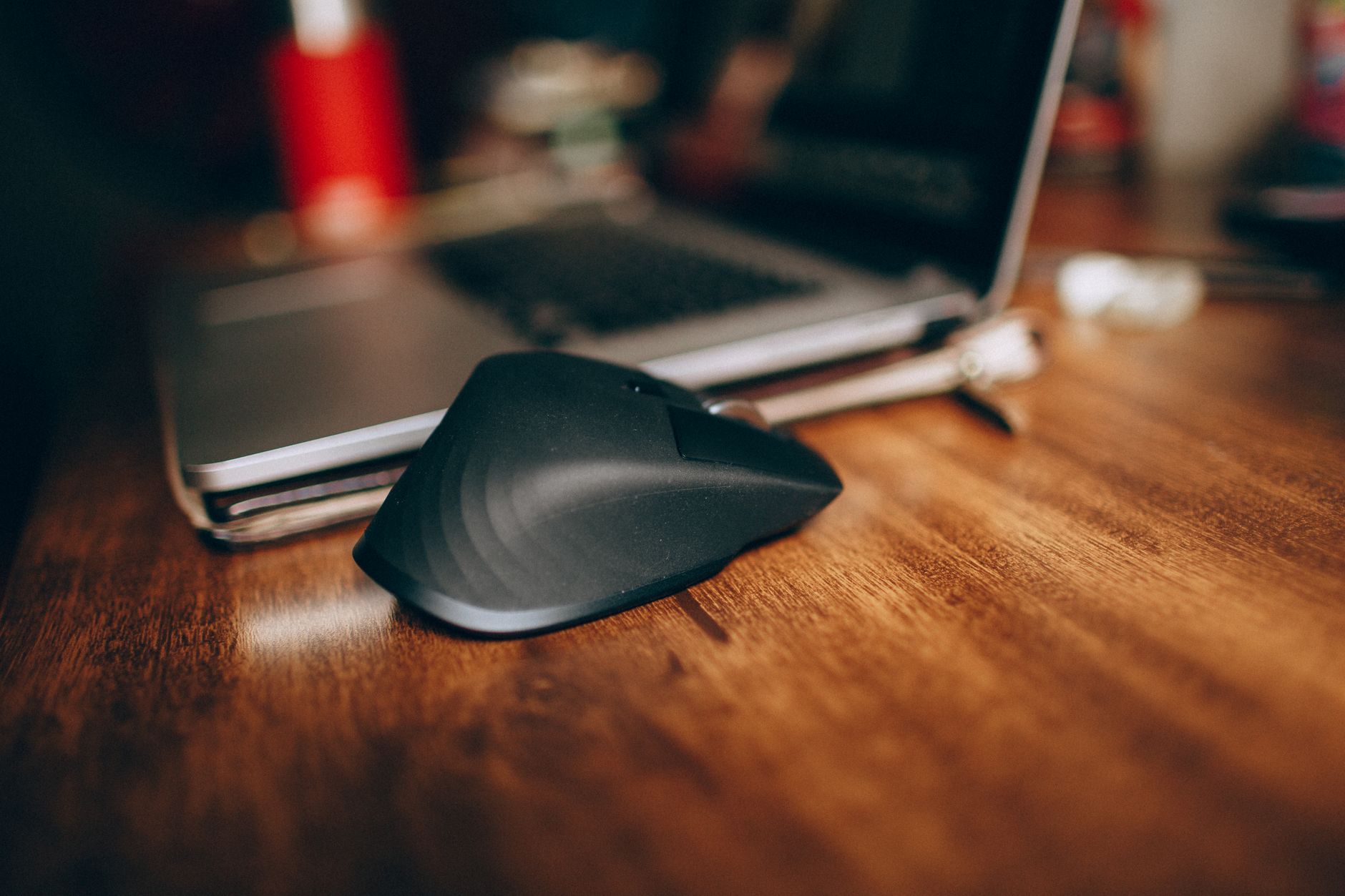
MX Master 3S
A feature-rich office mouse with a quiet click, free-spinning main wheel, and thumb wheel.
Why we like it
- Excellent scrolling controls
- Multi-device support
- Quiet main buttons
Watch out for
- Right-handed shape
- Relatively large and heavy
Best for
Right-handed users who work in long documents and switch devices
Start with shape
A popular mouse can still be wrong for a small hand, left-handed use, or fingertip grip. Look at dimensions and return terms before interpreting feature lists.
Start with shape should support the work rather than become another project to maintain. For the best mice for productivity, make the smallest change that can be evaluated clearly. Note what improves, what remains awkward, and whether the solution still works at the end of a full workday.
Reduce travel
Pointer speed, keyboard shortcuts, and placing the mouse close to the keyboard can reduce repetitive reaching more than adding extra buttons.
Reduce travel should support the work rather than become another project to maintain. Check measurements and compatibility in your own room before buying. Manufacturer diagrams are useful, but they cannot account for your chair, reach, doorway, laptop policy, or household constraints.
Use customization selectively
Assign commands you use daily, such as back, task view, or horizontal scroll. Too many app-specific mappings become harder to remember than the original shortcuts.
Use customization selectively should support the work rather than become another project to maintain. Leave room to revise the setup. Reusable fasteners, adjustable components, and a straightforward return policy turn an uncertain first choice into a manageable decision.
OUR METHOD
How we chose what matters
We organized this guide around the decisions that have the largest effect on everyday usefulness. Our current research process does not substitute invented lab scores for judgment. Instead, we compare documented capabilities, constraints, service terms, ergonomics guidance, broadly reported ownership patterns, and whether a feature solves a credible work-from-home problem.
We revisit guides when products, standards, or common work patterns change. Read more about how we choose products and our editorial standards.
FAQ
Frequently asked questions
Is a vertical mouse better?
It changes forearm position and helps some users, but not everyone. Transition gradually and choose a size that does not force finger reach.
Can a trackball reduce pain?
It reduces arm movement and can be useful in limited space. Any persistent pain deserves professional evaluation rather than relying on one device.